Image to 3D game character: a step-by-step guide
A free, open-source image-to-3D guide. One picture to a finished, rigged and animated game character on your own Mac or NVIDIA PC, step by step.
The short version. Open-source image-to-3D models like TRELLIS.2, Pixal3D and Hunyuan3D are impressive, but out of the box they stop at a raw mesh: about a million triangles, soft faces, the odd hole, and no skeleton to animate. Hosted tools like Tripo and Meshy go further. We couldn't find a free, open-source pipeline that runs on your own machine and takes one picture all the way to a clean, rigged, animated game character. AssetFurnace bridges that gap. It's a local, open-source alternative to Tripo and Meshy: it runs the best open models, then adds the steps they're missing, like Finish to game-ready size, Hero faces, Skins, rigging and moves. We admire what Tripo and Meshy have built, and our goal is to match their quality, free and on your own computer. We're not there on everything yet, and this guide says where.
Greetings traveller! AssetFurnace is a free, open-source image-to-3D tool that runs on your Mac or NVIDIA PC. This guide walks you through it from start to finish: from a text prompt to a finished character out. Ready to drop into Godot, Unity, Unreal or Blender. Everything runs on your own computer. Nothing is uploaded anywhere. Your fans are going to spin and your GPU is going to get hot. But it's worth it. Trust us!
If you only read one part, read Start with a good picture. Most of a good model is decided before any 3D happens.
1. Install and open the studio
The easy way: ask your AI agent. If you use Claude Code, Codex, Cursor or another coding agent, tell it:
Install AssetFurnace from assetfurnace.com and connect it to yourself.
It reads our install steps, checks your machine, asks you before downloading anything big, and connects itself so it can make models for you.
Or do it yourself. Paste one line into a terminal:
curl -fsSL https://assetfurnace.com/install.sh | bashOn Windows, in PowerShell:
irm https://assetfurnace.com/install.ps1 | iexThen start the studio with ./lab from the AssetFurnace folder. It opens in your browser.
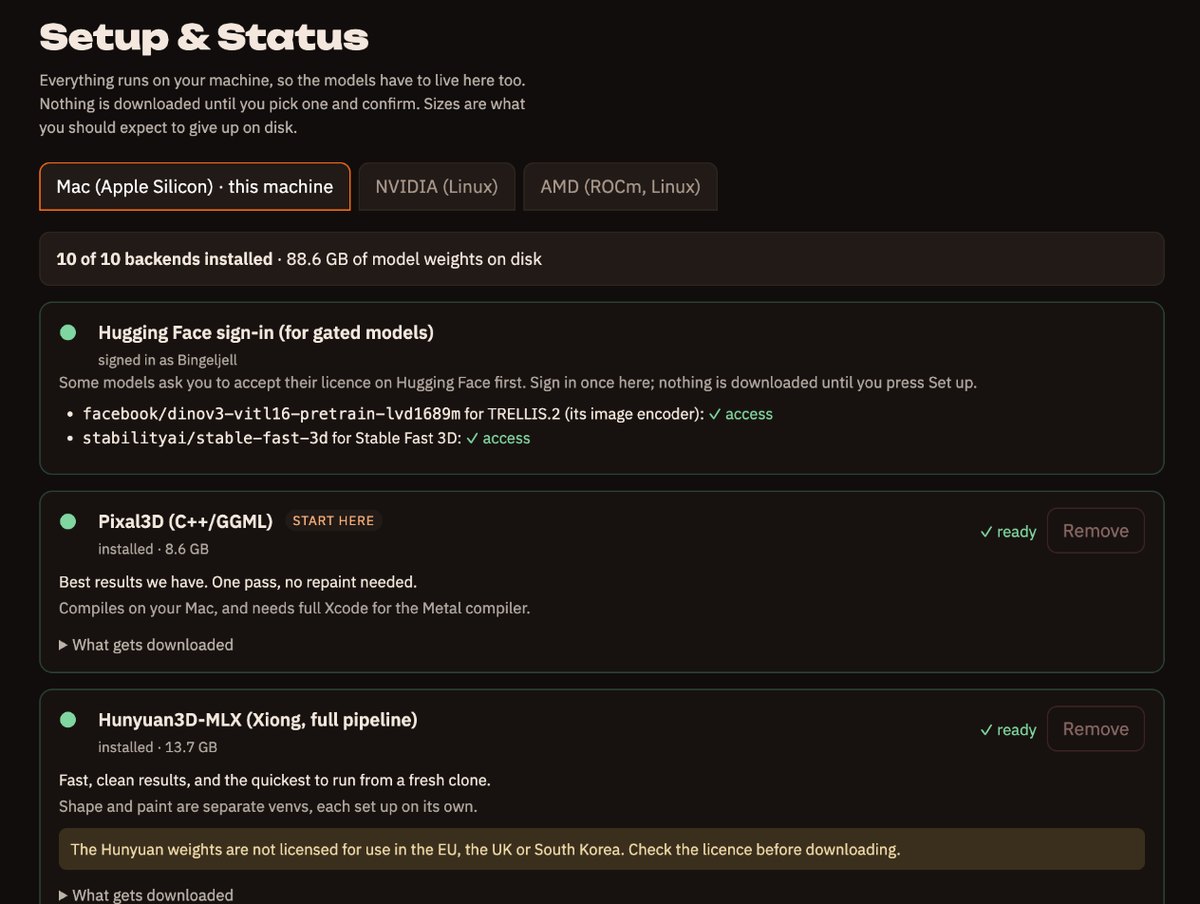
The first time, open Setup. Pick the engines you want. Each one says how big it is and what its licence is before anything downloads, and nothing downloads until you say yes. For characters, the ones you want are Pixal3D (the 3D engine), Auto-rig (skeletons) and the Hero face upscaler (sharper faces).
Hunyuan3D is pretty good too, but has license restrictions and the bulk of our pipeline is actually built on Pixal3D - so for hero characters or our Pixel Match feature, you'll need to run the Pixal3D route.
You'll also find TRELLIS.2 in Setup, Microsoft's open-source image-to-3D model, if you want to compare engines.
2. Start with a good picture
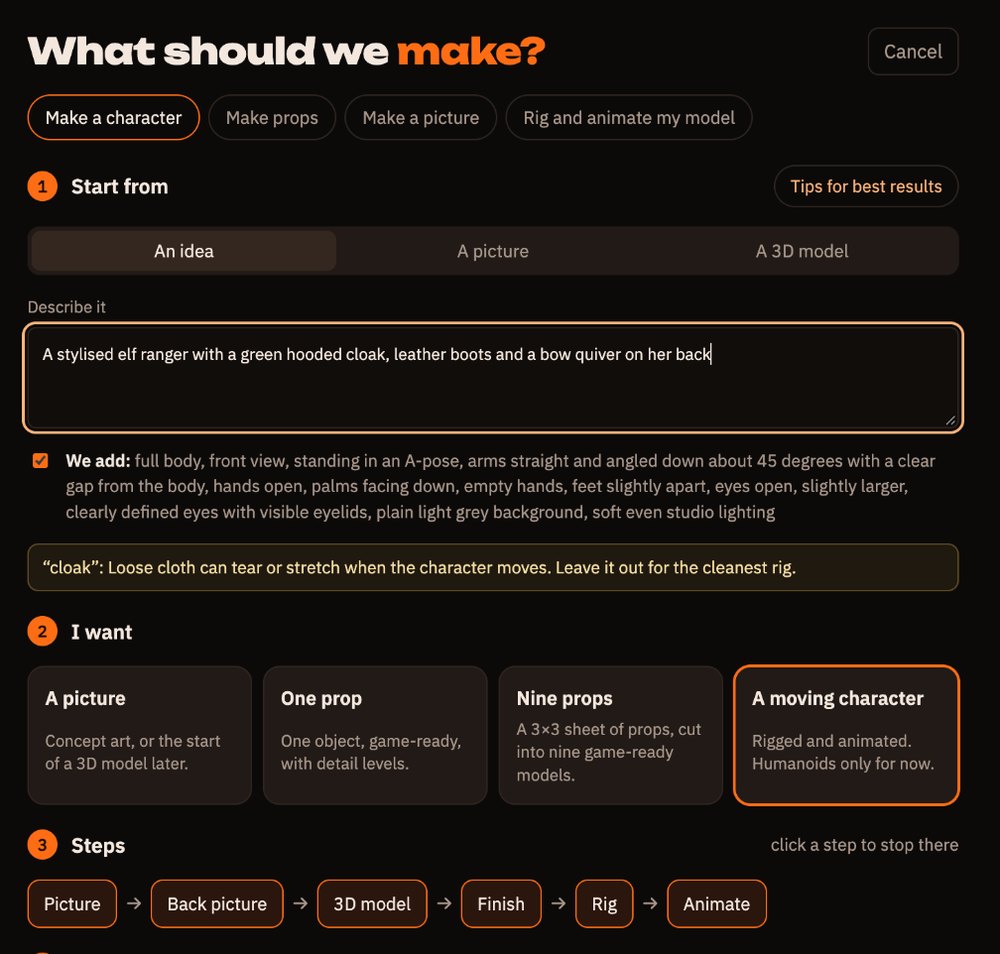
Press + Create. You can start from an idea (type a sentence and AssetFurnace draws the picture for you), from your own picture, or from a 3D model you already have. For a character, pick A moving character.
What makes a picture work:
- One character, whole body, standing in an A-pose: arms angled down about 45°, with a gap between arms and body. If you type an idea, the pose words are added for you.
- Empty hands. Make swords, shields and staffs as separate props.
- A soft, even 3D-render look on a plain background. Dramatic lighting gets baked into the colours.
- Neat hair in solid locks, clear of the face and shoulders. Thin, loose strands don't survive being made game-sized.
- Say what you want, not what you don't. "Smooth fabric" works. "No wrinkles" tends to add wrinkles.
- For realistic people, ask for eyes open and slightly larger, clearly drawn.
A note for the tinkerers: We've found that Qwen manifests stuff. So if it's in the prompt, it'll show up even if your intention is negative. Eg: "No beard" can quite possibly manifest one. "Clean shaven" is a better approach. Be positive! :D
Press Tips for best results in Create for a reminder at any time.
3. Pick your face: Quick or Hero face
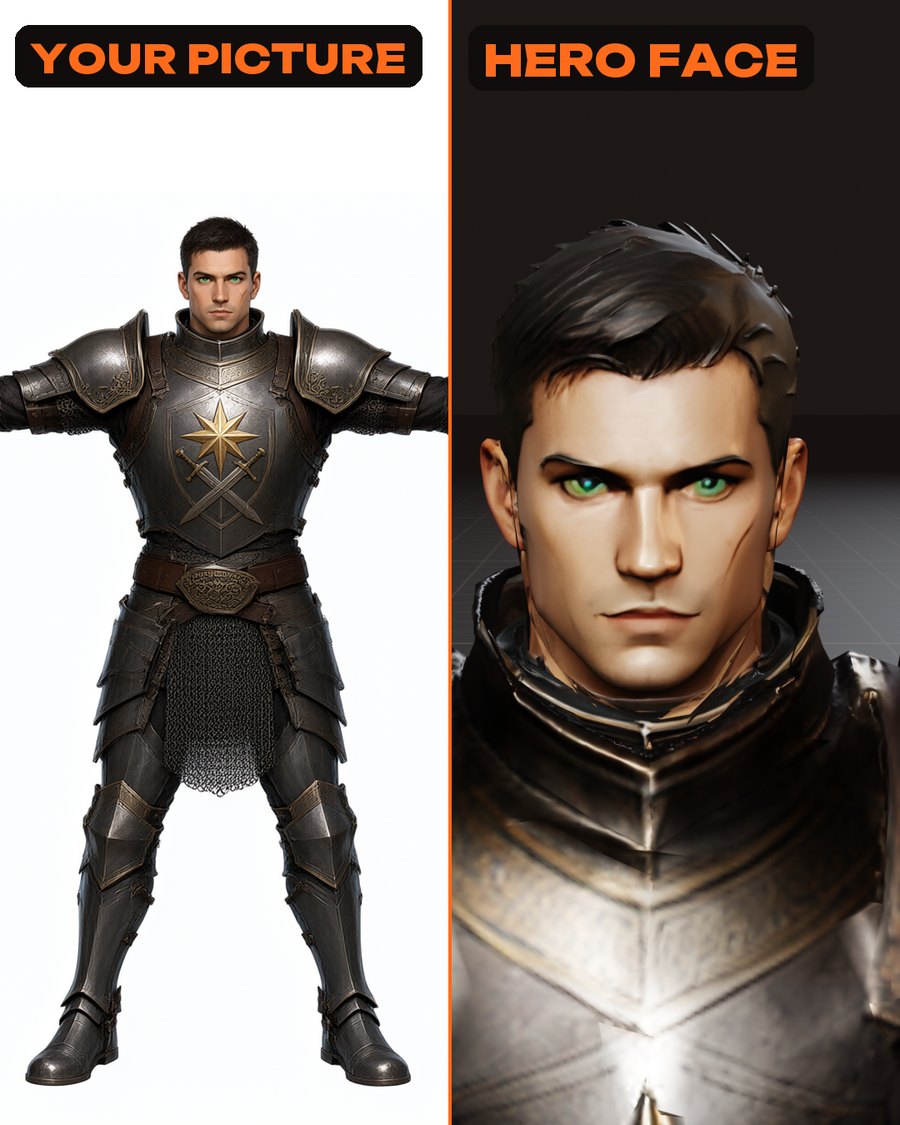
Faces are where open-source image-to-3D models stumble most. Out of the box, TRELLIS.2 and Pixal3D give realistic faces soft, goggle-like eyes, because a face is a small part of a full-body picture. When you make a character, Create asks how much care the face gets:
- Quick is the usual Finish. Fine for most characters, and for anything seen from a distance.
- Hero face builds the head a second time from a close, sharper crop of your picture and joins it back on. You get real eyelids and clear eyes instead of soft, goggle-like ones. It takes longer, and it's worth it for any character the player looks in the face. The time it takes will depend on your system - but based on our tests an M5 grade base Macbook gets through the whole Hero finish from text prompt to finished character in ~20 mins. A 4090 will be about half the time, maybe less. Your mileage may vary.
Press Make it. Progress shows in the middle of the studio. You can close the tab: the run carries on, and the studio picks it up when you come back.
4. Look at what you got
Your character appears in the 3D view. Drag to orbit, scroll to zoom, right-drag to pan. The buttons in the top right are your best friends here:
- Clay shows the shape in plain grey. Paint can hide a bad shape, so judge the shape here first.
- Wireframe shows the triangles.
- Click an axis on the little gizmo to look straight from the front, side or back.
Turn the character all the way round. Check the face from the side, not just the front, and check the back.
5. Finish: game-ready size
Out of the box, Pixal3D and TRELLIS.2 hand you a raw mesh of about a million triangles. That's lovely for a still render and far too heavy for a game. Finish makes it game-ready: fewer triangles, clean paint from your picture, one tidy texture.
If you made a character from Create, this is done for you. To redo it, or to finish something you made earlier, open the Steps panel on the right and pick a Detail under Finish:
- 20,000 triangles is the default and right for most games.
- 10,000 is lighter, for crowds and mobile.
- High (50,000) keeps faces cleaner from the side. Best for realistic people.
- Hero face is the sharper head from step 3.
- Full detail keeps every triangle, for renders and stills, not games. Note - this looks the best BUT a million triangle object will kill your game.
Finish keeps the old version, so you can compare and pick.
6. Fix a spot
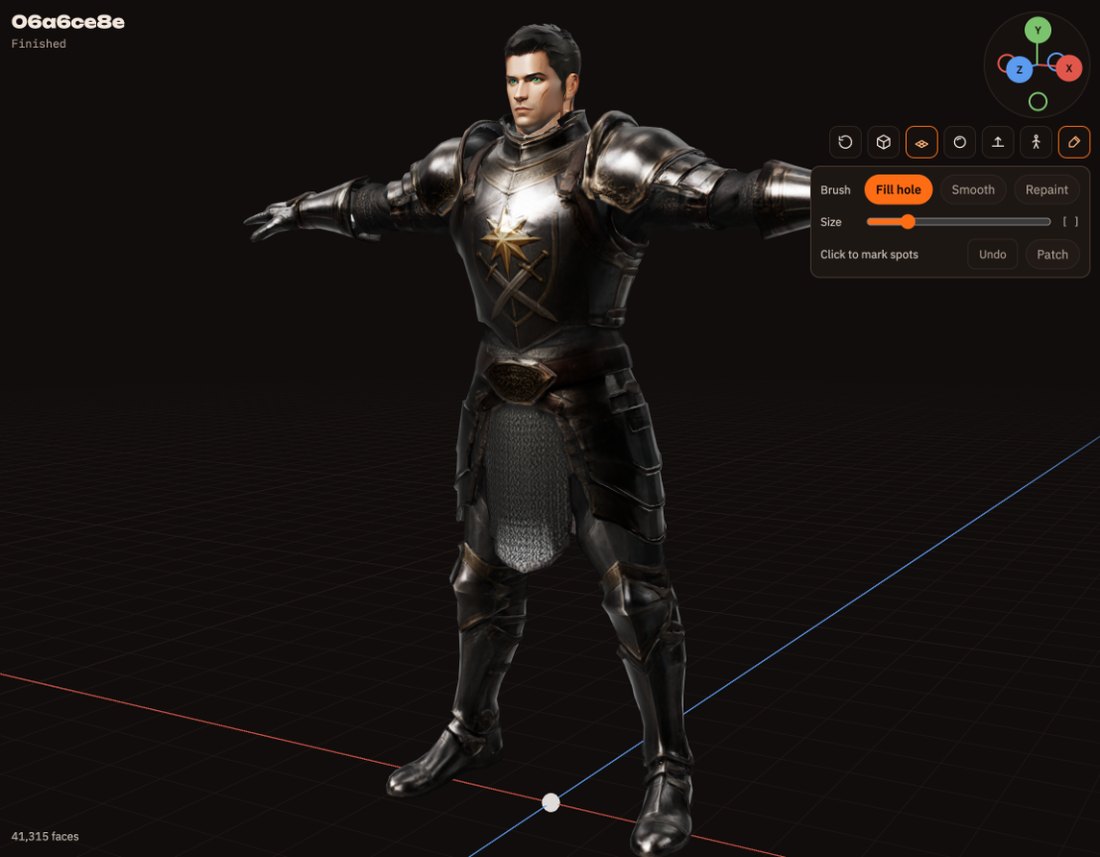
Not every model comes out perfect. A dark pocket in a pupil, a bump on a cheek, a smudge of paint. You can fix those yourself, right in the 3D view.
- Press the brush button in the 3D view.
- Pick a tool:
- Fill hole cuts out a pocket or dent and patches it smooth: dark pupils, goggle eyes, pits in a beard. - Smooth irons out bumps and ridges without cutting anything. Set how strong. - Repaint changes paint only, from your picture: scuffs and smears.
- Click to mark spots. Size the ring with the slider or the [ and ] keys.
- Press Patch and flip Before / After. The camera stays still, so you see exactly what changed.
- Keep saves a new version. Discard throws it away.
7. Skins: new paint on the same character
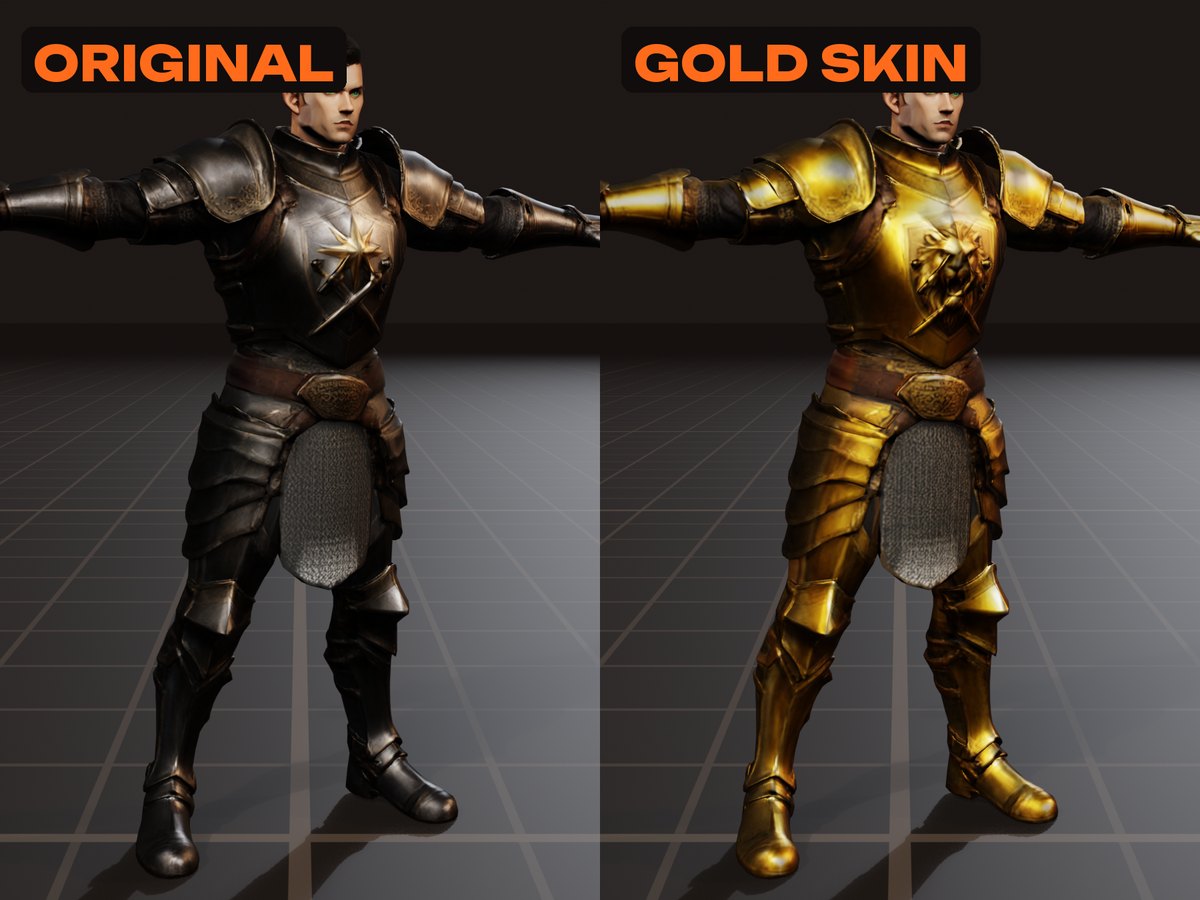
Want the same character in gold armour, or a different colour of cloak? Skins repaint the model without making it again.
- Open your finished character and go to Steps > Skins > New skin.
- Say what to change, for example "make the armour gold".
- A new front picture appears next to the original. Approve it, or ask again with a correction. Then the same for the back.
- The model is repainted. Same shape, so its rig and moves still fit.
Pick any skin under the model to see it. Download with every skin gives you one GLB with all of them, switchable in Blender and other tools.
Good to know: skins change paint, not shape. Ask for fluffier boots and you'll get the old boots in a new colour. Skins work on Mac and NVIDIA PCs. They don't work on Hero face models yet; that's coming next.
8. Rig and animate
A raw image-to-3D model has no skeleton, so it can't move. Rig and Animate fix that, all locally. They're for humanoids: two arms, two legs, standing up.
- In the Steps panel, press Rig. AssetFurnace adds a skeleton and works out how the body bends.
- Press Animate and pick a move: walk, idle, jump, wave and more.
- Play it in the 3D view. Add as many moves as you like.
Hack: Rig will work for anything really - but animate will break on anything that doesn't fit the humanoid skeleton - so if you want to just rig something and take it into blender to animate, you can do that too! We'd love to hear how you use this!
9. Take it into your game
Download GLB saves the model, or the move that's playing. GLB opens in Godot, Unity, Unreal, Blender and three.js.
Show in folder and Copy path sit next to it, if you'd rather grab the file yourself.
When something looks off
- Soft or goggle-like eyes: finish again with Hero face, or close a dark pupil with Fix a spot > Fill hole.
- Scratches or flat patches on a face from the side: finish again with High.
- A bump, dent or scuff: Fix a spot.
- Thin hair torn into strands: make the picture again with neater, solid hair clear of the face.
- A pose that won't rig well: make the picture again in an A-pose with empty hands.
- Still stuck? Press Report a bug in the studio. It fills in the details, you read everything before sending, and nothing leaves your computer until you do. Or come say hi on Discord. OR tag me on X
Using an AI agent
Everything in the studio is also available to AI agents (Claude, Codex and others) through AssetFurnace's MCP server. For Claude Code, run claude mcp add assetfurnace -- ~/assetfurnace/lab mcp (use the folder you installed to), then start a new session. The agent can create, finish, reskin, rig and animate, and it asks you before downloading anything. Setup for other agents, and the instructions agents read, are at assetfurnace.com/llms.txt.
Where we're headed
AssetFurnace is open source, and the goal is simple: Tripo- and Meshy-level characters from open models, on your own machine. Every release gets closer. If something falls short, tell us on Discord or in GitHub Discussions, and star the repo to follow along.